Guide on how to display and distribute tickets
日本語ガイドはこちら
Preparations for displaying tickets
To display the ticket, the following two items are required for each main attendee and accompanying guest.
❶A smartphone with internet connectivity
Note:
- An internet connection is required for entry.
- The following browsers will be used depending on the device you are using. Tickets may not be displayed on browsers other than those recommended below.
- iPhone:Safari(latest version)
- Android:Chrome(latest version)
❷MOALA account (MOALAアカウント)linked to TOBE ID
Before proceeding to "Display ticket" or "Receiving the distributed tickets"Please be sure to check your MOALA account by following the steps below.
How to check the connection
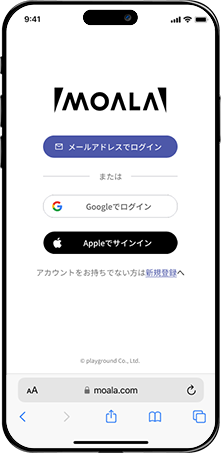
1.
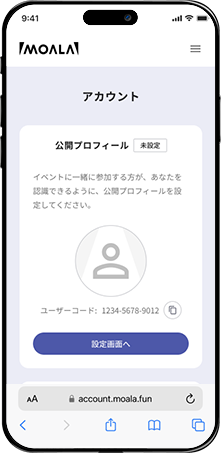
2.
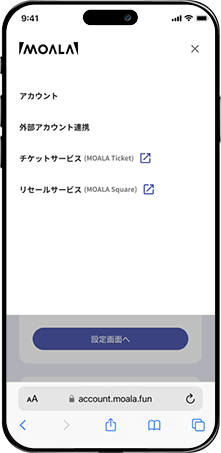
3.
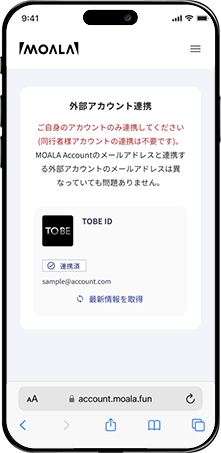
4.
- Access your MOALA account
- Tap the "≡" menu in the top right
- Tap "External account linking(外部アカウント連携)
- Please check if your TOBE ID is "Linked(連携済)"
If it says "Linked(連携済)"
1.
2.
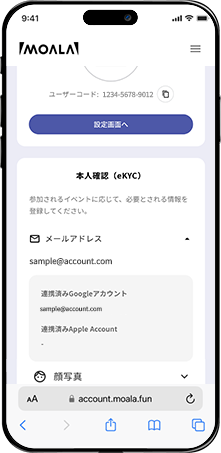
- Tap the "≡" menu in the top right and then tap "Account(アカウント)"
- Tap "Email address(メールアドレス)" under identity verification (eKYC).The address listed here is your MOALA account.(If necessary, please take a note of the address or take a screenshot.)
If you do not have a MOALA account
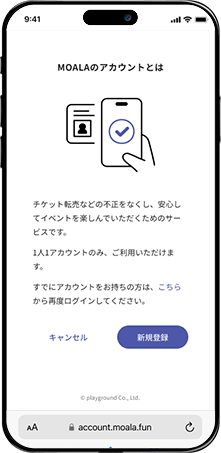
If you do not have a MOALA account, please register a new one following the steps below.
1.
2.
3.
- Access your MOALA account
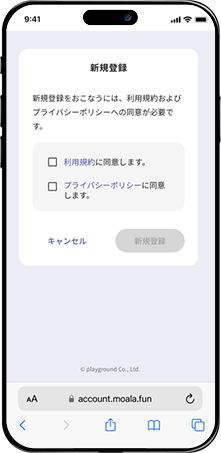
- Please check the "Terms of Use(利用規約)" and "Privacy Policy(プライバシーポリシー)",Check the box and tap "New Registration(新規登録)"
- Tap "New Registration(新規登録)"
If it says "Not linked(未連携)"
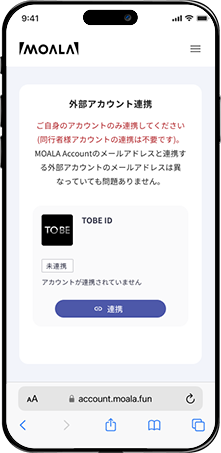
Please follow the steps below to link your MOALA account and TOBE ID.
1.
2.
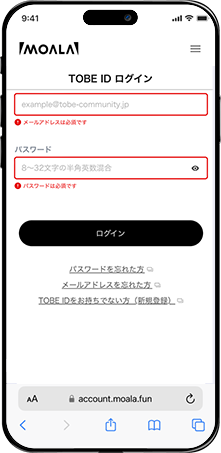
3.
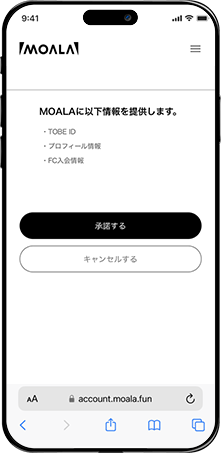
- Tap the "Connect(連携)" button.
- Enter your TOBE ID and password and log in.
- Tap the "Accept(承諾する)" button.
Note:
- Once your MOALA account and TOBE ID are linked, you cannot unlink them.
- If you receive an error stating 'Already linked to another MOALA Account'(すでに他のMOALA Accountに紐づいてます)when linking your new TOBE ID,You have another MOALA account linked to your TOBE ID.Please log out by clicking "Logout(ログアウト)" at the bottom, then log in again with your correct MOALA account.
Once you have completed steps ❶and ❷above, please proceed to
- ・Main attendee→02 Display ticket
- ・Accompanying guest→04 Receiving the distributed tickets
Display ticket (main attendee)
Access to MOALA Ticket
Note:
・The URL is common.If you have not received an email informing you that ticket issuance has begun, please view your tickets using the link above.
How to display ticket
1.

2.
3.
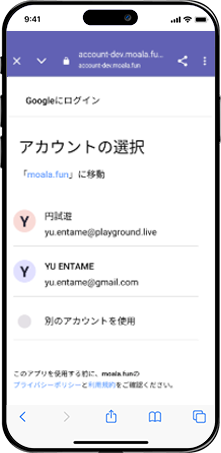
4.
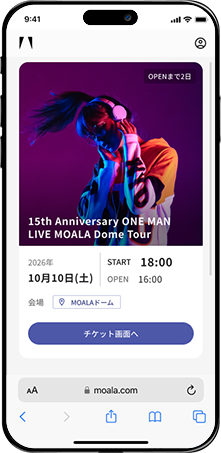
5.
6.
- Tap [New Registration/Login(新規登録・ログイン)]
- Log in with the MOALA account linked to your TOBE ID confirmed in 01 Preparations for displaying tickets.
- If an account selection screen appears, select the MOALA account that is linked to your TOBE ID. (This screen will be skipped if you access the site for the second time or later.)
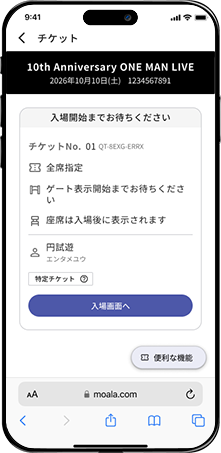
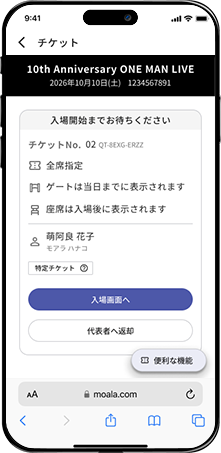
- Please check the tickets for the relevant event. Tap the [Go to ticket screen(チケット画面へ)] button.
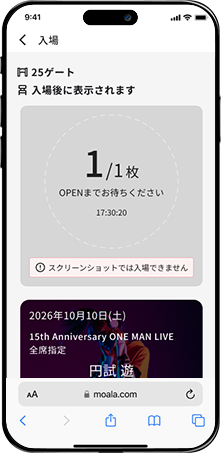
- Tap the [Go to admission screen(入場画面へ)] button.
- This screen is required for admission.
If you can't see your tickets after logging in
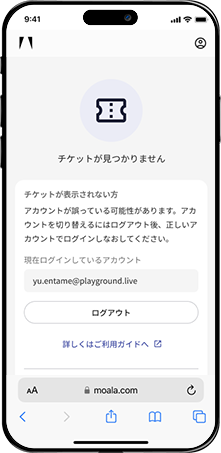
- ・Tickets for the applicable performances have not yet been displayed.
Please wait for notification when ticket sales begin. - ・The MOALA account you are logged in with is incorrect
Please log out and log in again with the correct MOALA account.
Ticket distribution (main attendee)
Tickets for accompanying guest must be shared. You will not be able to enter with unshared tickets.
Please distribute tickets to your companions in advance using one of the following methods.
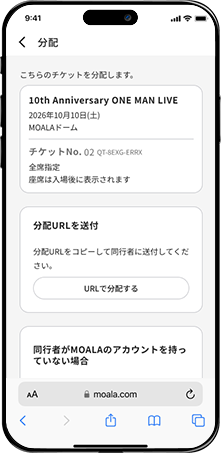
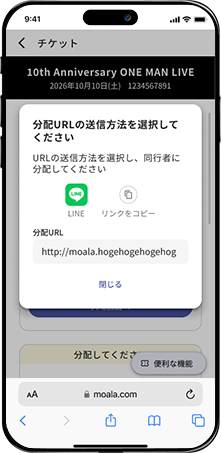
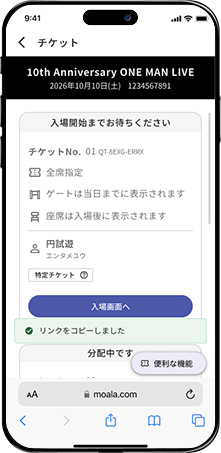
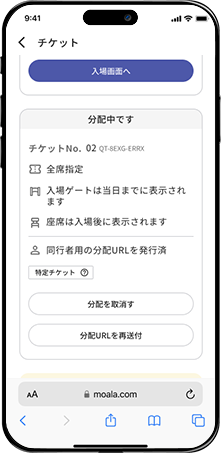
When distributing via URL
1.
2.
3.
4.
5.
6.
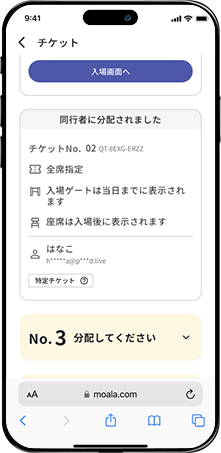
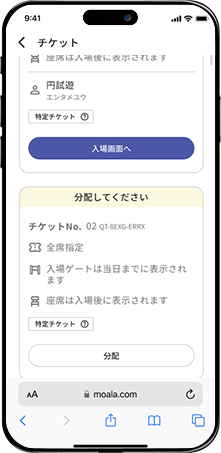
- Select the ticket you want to share and tap “Share(分配)”
- Tap “Distribute via URL(URLで分配する)” under Send distribution URL(分配URLを送付).
- Tap “Copy link(リンクをコピー)”
- Return to top of ticket list
- The shared ticket will be marked as “Distributing(分配中です)” until the recipient has received the ticket.
- Once the recipient has received the item, the message “Distributed to companion(同行者に分配されました)”will appear.
When distributing via LINE
1.
2.
3.
4.
5.
6.
- Select the ticket you want to share and tap “Share(分配)”
- Tap “Distribute via URL(URLで分配する)” under Send distribution URL(分配URLを送付).
- Tap “LINE”
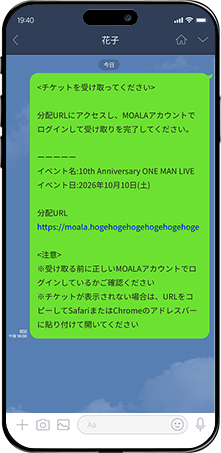
- A message containing the distribution URL will be sent to the recipient on LINE chat.
- The shared ticket will be marked as “Distributing(分配中です)” until the recipient has received the ticket.
- Once the recipient has received the item, the message “Distributed to companion(同行者に分配されました)”will appear.
Receiving the distributed tickets (accompanying guest)
Before receiving your distribution ticket, please be sure to check the MOALA account linked to your TOBE ID.
If you receive a distribution
1.
2.
3.
4.
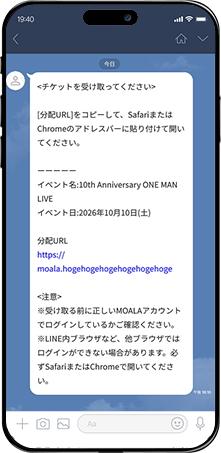
- Tap the “Distribution URL(分配URL)”sent by the main attendee.
- Log in with your MOALA account
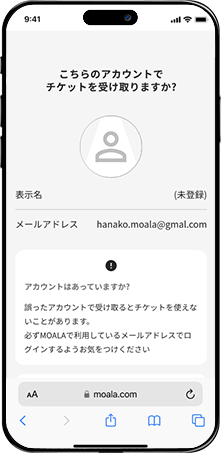
- Make a final check of the MOALA account you wish to receive the tickets on, and if there are no problems, tap the “Receive(受け取る)” button. (If you log in (receive) the tickets using the wrong MOALA account, the tickets will be returned to the main attendee and you will need to start the distribution process over again.)
- The ticket screen will be displayed. When this screen is displayed, ticket collection is complete.
After receiving the tickets, the distribution URL from the main attendee will be invalid. To view the tickets again, please access MOALA Ticket.
Please be sure to CHECK!
If the following screen appears, you are not yet ready to enter.
Please make sure to link your TOBE ID and MOALA account.
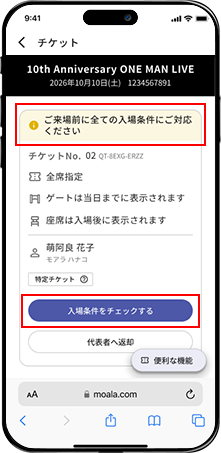
How to deal with admission conditions
1.
2.
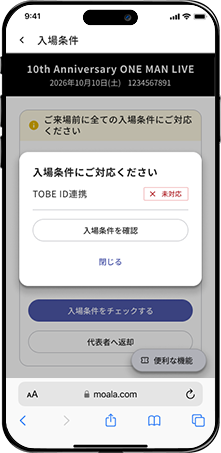
3.
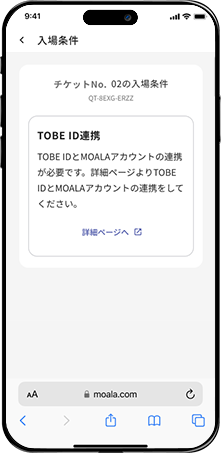
4.
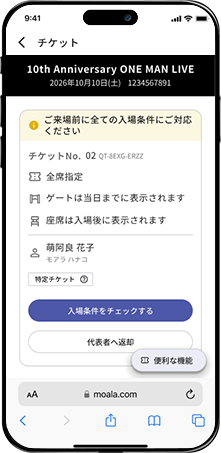
5.
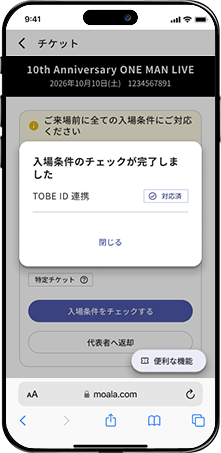
6.
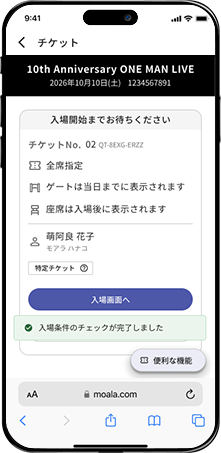
- Tap “Check entry conditions(入場条件をチェックする)”
- Tap “Check admission conditions(入場条件を確認)”
- Please link your MOALA account with your TOBE ID. (For details, please chesk 01 Preparations for displaying tickets.)
- After linking your TOBE ID, tap “Check admission conditions(入場条件をチェック)” again
- The admission conditions will be checked, confirm that the TOBE ID link is set to “Supported(対応済)”, and tap “Close(閉じる)”
- The ticket screen will be displayed. When this screen is displayed, ticket collection is complete.
If you receive an error stating 'Already linked to another MOALA Account'(すでに他のMOALA Accountに紐づいてます)when linking your new TOBE ID,You have another MOALA account linked to your TOBE ID.
Please “return(分配返却)”the funds to the main attendee and then start again from “distribution(分配)”
Distribution and return(分配返却) method
1.
2.
- “Distribution and return(分配返却)”of tickets to the main attendee
- Log out of the currently logged in account
The main attendee must complete the “distribution”procedure again and issue a new “distribution URL”.
Accompanying guest must use the new “distribution URL(分配URL)” to collect their tickets again using the correct MOALA account linked to their TOBE ID.
Admission
1.
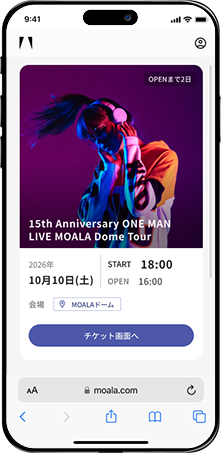
2.
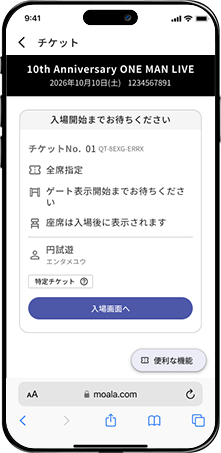
3.
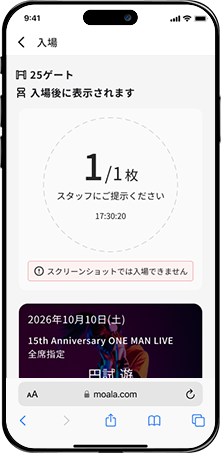
4.
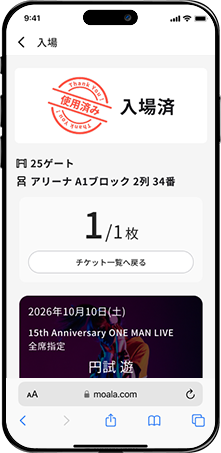
- Tap “Go to ticket screen(チケット画面へ)”
- Tap “Go to admission screen(入場画面へ)”
- With the “Admission Screen(入場画面)” displayed, please proceed to the admission waiting line.
- Once the admission process is complete, the status will change to “Admitted(入場済み)”and your seat information will be displayed.
Note:
- A communication environment is required to display the entrance screen. Due to congestion near the entrance, it may take some time for the entrance screen to appear.
- You may be asked to verify your identity. Please be sure to bring the specified identification documents with you on the day of the performance.
- Please check the performance page for the required identification documents.
How to resale
1.
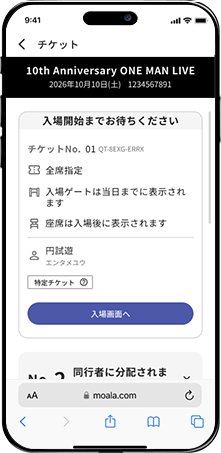
2.
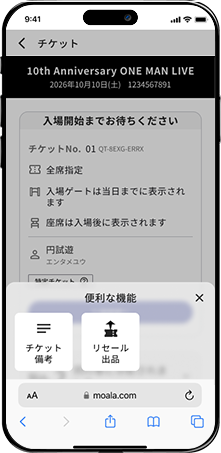
3.
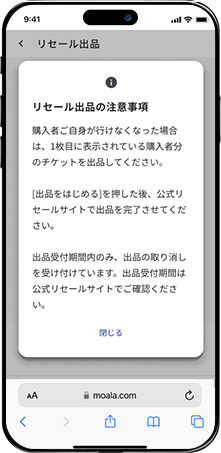
4.
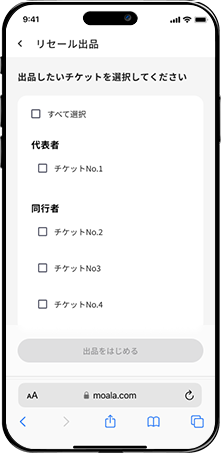
5.
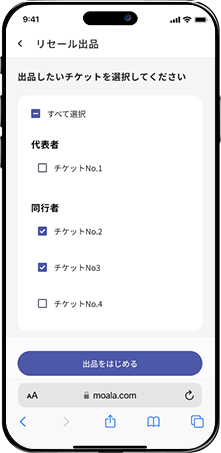
6.
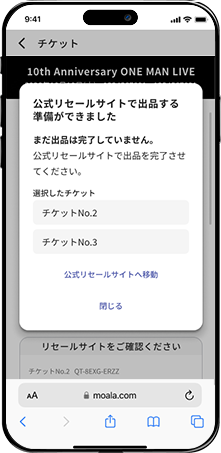
- Tap “Convenient Features(便利な機能)”
- Tap “Resale Listing(リセール出品)”
- Please check the precautions for resale listings
- Select the tickets you want to resale
- Tap “Start selling(出品をはじめる)”
- Tap “Go to official resale site(公式リセールサイトへ移動)” (will take you to MOALA Square)
Note:
- Only the main attendee can resale tickets.
- Tickets that have been distributed to accompanying guests can be listed after being returned to the main attendee.
- For details on resale, please access to The Official Resale Guide.
FAQ
Q.I can't log in to my MOALA account due to an error.
A.Please check the following.
- ・Please make sure you are using a recommended browser.
For iPhone, please use Safari, and for Android, please use Chrome.
The page may not be displayed on in-app browsers such as LINE and Yahoo. - ・Delete your cache and cookies and access MOALA Ticket again.
- ・Please make sure you do not have many tabs open.
Please close all tabs and access MOALA Ticket again. - ・If you are using a private browser, please use a regular browser.
Q.I changed my phone model.
A.MOALA Ticket is displayed on a browser, so changing your device will not affect it.
- Main attendee→02 Display ticket
- accompanying guests→04 Receiving the distributed tickets